 Security Alarms
Categories
- Conventional fire alarm systems
- Wireless Fire Alarm System
- LPCB addressable fire alarm
- Addressable fire alarm system
- Gas detection alarm system
- Electrical Fire Monitoring
- Fire Alarm Fire Extinguishing
- Fire Alarm gas fire-extinguish
- Commercial Burglar Alarm System
- Security Service Equipment
- Commercial security solutions
- Industry Security Equipment
Manufacturers
Languages


Wireless Addressable Fire Alarm System Installation
This document details the full installation, debugging, operation procedures and precautions for the JB-TB-TC5126W wireless fire alarm control panel, with TC-ZJ402 wireless signal extender as the matching auxiliary device, covering core steps from pre-installation preparation to post-debugging acceptance, fault resolution and key operational notes.
1. Core Installation Workflow
Confirm the control panel’s type, quantity, installation position per drawings → Install the panel → Device network access → Test communication (add signal extender if communication fails; proceed if normal) → Programming → Debugging → Acceptance check.
2. Device Network Access & Communication Distance Test
2.1 Pre-access Network Settings (Control Panel)
Network segment setting: Enter Menu→6 Network setting (password 111111)→2 Wireless setting; set different frequencies for different segments (e.g., 464.2MHz/466.2MHz) to avoid interference, frequency range related to 464-466MHz.
Wireless address: 1-254 for field devices; consistent address required between panel and signal extender in debugging.
Power consumption level (4 levels): Lv1 (max 32 devices/loop, fault report in 100s); Lv2-4 (max 64 devices/loop, fault report in 2h/12h/15h respectively); Lv4 is recommended (impacts battery life).
Loop setting: 1-2 loops available for the panel, set per actual usage.
2.2 Device Network Access/Exit & Status Test
Access: Menu→5 System settings (111111)→4 Wireless registration; select loop/sensitivity/device type, press the device’s network button 3x (green light flashes 3x) to send access request.
Exit: Under wireless registration interface, press the device’s network button 3x (green light flashes 3x) to send exit request.
Status test: Press the network button once (green light flashes once); panel displays loop/address + R/T signal strength (0-130, smaller value = better communication) for successful access.
Factory reset: Tap the network button 5x within 10s of device power-on (alarm light on for 10s).
2.3 Communication Distance Test
Check panel signal reception/strength at the device’s designated position; add a signal extender if the panel has no response.
3. Signal Extender (TC-ZJ402) Debugging & Addition
Acts as a data bridge between field devices and the panel to extend communication range; debugging includes panel side and software side settings, with on-site installation/test after setup.
3.1 Panel Side Setting
Enter Menu→6 Network setting (111111)→5 Signal extender setting; set wireless loop (1-2), relay link (1-8, 5 extenders max/link), start/end device address (1-64) and mode (0-Add/1-Del/2-Clr). For discontinuous device addresses, set repeatedly; split address ranges for different links (e.g., 1-32/33-64 for Link1/2).
3.2 Software Side Setting
Connect RF470 wireless communicator to computer, set COM port in debugging software, fill in consistent panel wireless address, panel ID, loop number and frequency with the panel.
Set extender parameters per on-site device distribution (floor/address range); distinguish device types (00X for direct transmission, X0X for relay transmission by lower-level extenders).
Power on the extender (running light flashing), press the setting button 5x (three indicators flash), send settings via software (100% progress = complete), press the setting button again to exit setup mode (only one extender can be set at a time).
3.3 On-site Test & Installation
Test signal strength (fault light flashes 3x then off = good; off after 3s = poor, adjust position); avoid channel collision from close installation.
Max 8 extenders/loop, 5 extenders/floor for the panel; add multi-floor extenders if single-floor range is insufficient.Install extenders away from power distribution shafts, humid/EMI/shielded areas; keep power adapter connected for continuous power supply.
4. Physical Installation of Devices
After debugging, install via self-tapping screws (recommended) (drill wall + expansion plug) or 3M glue (only for non-drillable surfaces; ensure
smooth/dry/clean installation surface, regular adhesion checks). Recheck panel communication (loop/address/signal) post-installation; add extenders if no display.5. Control Panel Debugging & Linkage Test
Panel debugging: Compile device annotation/linkage programs per coding table; upload via USB or manual input on the panel.
Linkage test: Trigger alarm via MCP/smoke detector/temperature sensor; verify linkage device action, then reset all devices/panel immediately to avoid battery drain.
Device reset: Special key for manual call points/fire hydrant buttons; panel operation for other devices.
6. Critical Precautions
Plan device type/quantity/loop division pre-access; avoid idle addresses and signal extender cross-loop transmission.
Set panel loop segment/address pre-access (no modification post-access to prevent communication failure).
Match panel-side extender settings when adding extenders (no panel response to device alarms if not set).
Avoid simultaneous network access for multiple panels (short distance) to prevent wrong access/accidental exit.
Set extender start/end addresses per actual responsible device ranges (panel overwrites duplicate settings).
Timely reset alarm/feedback devices; long-term alarm drains battery.
Factory reset devices for single-point/channel deletion on the panel to avoid heartbeat interference.Fix the antenna near (not on) the control panel; one extender set at a time.
7. Common Problems & Solutions
Troubleshoot typical issues including no panel response post-device access (check extender transmission/working status/settings), device access failure (power cycle/ factory reset/ replace low battery), communication fault (add extender/ replace battery), no linkage (check panel programs/auto mode), I/O module input/output fault (add 10K resistor/ turn off line check/ re-operate network access), and base separation fault (recover device base fit).
More Information
Bestsellers
- High Sensibility smoke and heat...
- Break beam solar power wireless...
- Audio visual alarm conventional...
- Conventional fire alarm sounder...
- Conventional manual call point ...
- Horn strobe flash and sounder fire...
- PIR detector solar power wireless...
- Wireless infrared beam security...
- 2 fire zone Mini conventional fire...
Specials [more]
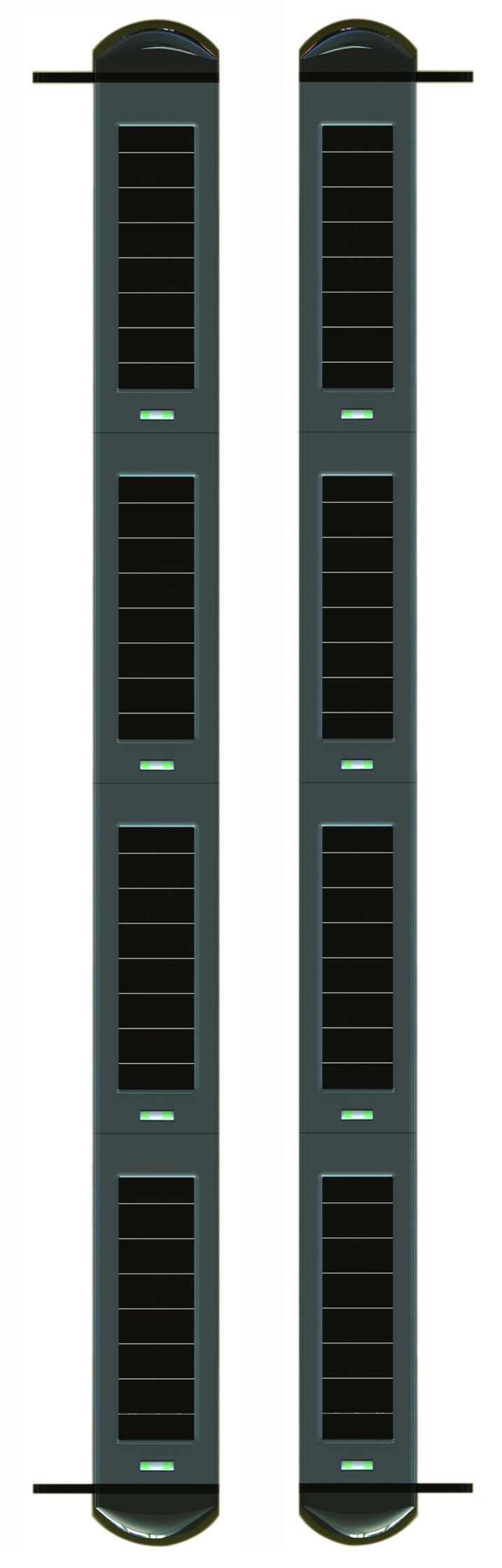
8 Beam Sensor Wireless Solar power Perimeter Security Equipment
Save: 6% off
Aspirating Smoke Detector Suction-type Fire Detection
Save: 14% off